Connect with SSH Keys Using Putty

Step 1: Generate SSH Keys
Open Puttygen and click on Generate to obtain both keys:
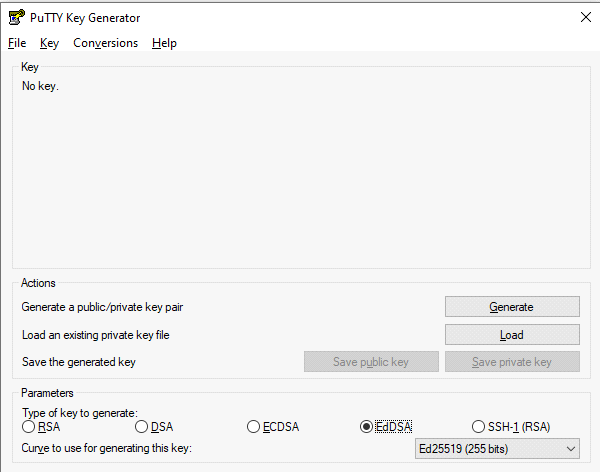
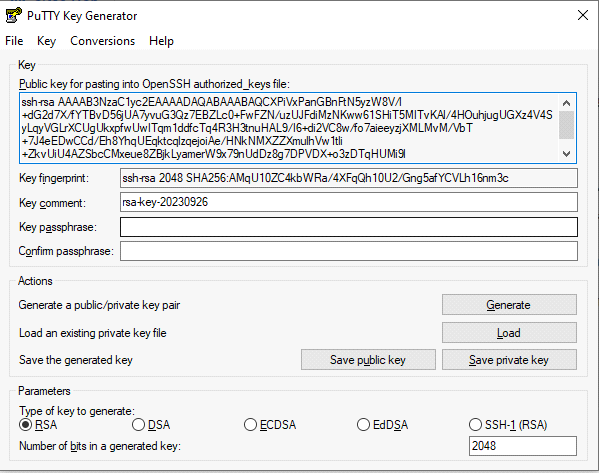
Click on Save private key to obtain the private key (.ppk)
Enter passphrase if desired. The passphrase adds an extra layer of protection to the private key.
Step 2: Configure SSH on Server
Open the file ~/.ssh/authorized_keys on your server.
Paste the public key into this file.
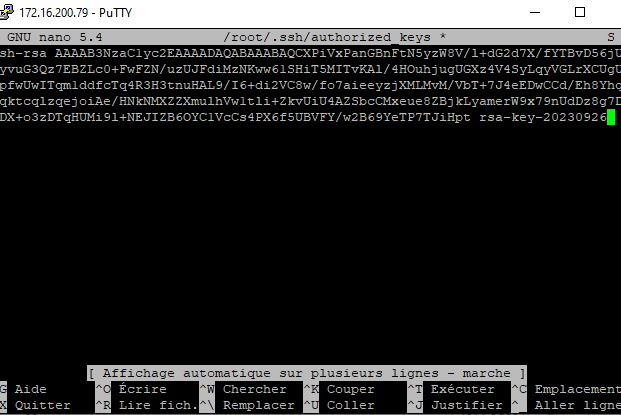
Save the file and execute:
systemctl restart ssh
Step 3: Configure Putty
Now open Putty:
- Enter your server's IP address.
- Click on SSH, then Auth, then Browse to load your private key.
- Save the session configuration by entering a name in the Saved Sessions field and clicking Save.
- Click Open to establish the SSH connection.

